Landmark · tested
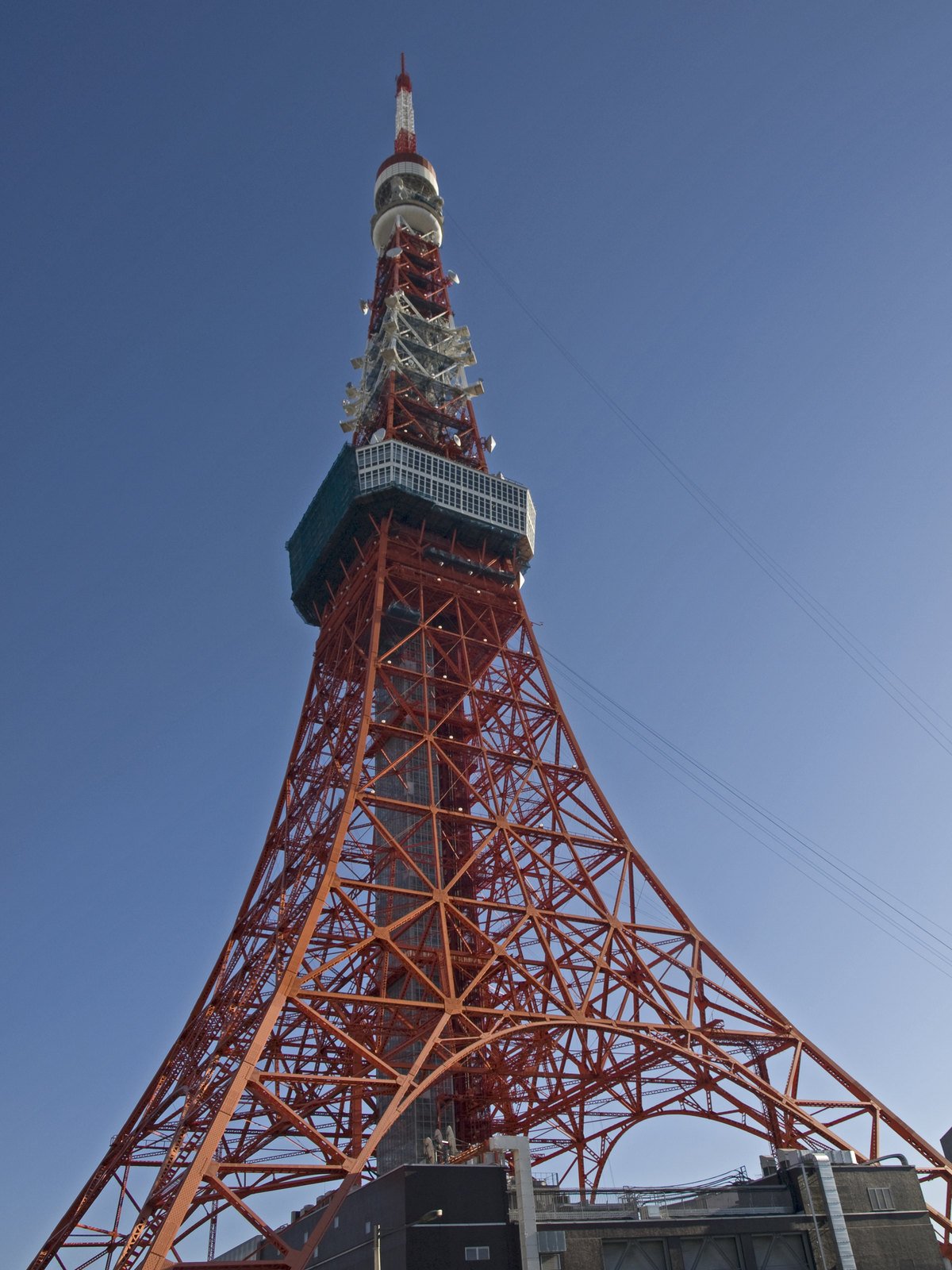
Tokyo Tower, Japan
Where was this photo taken? A landmark view led to Tokyo Tower, with a first prediction 95 m from the published camera coordinates. Response: 6.1 s.
Ymblanter · CC BY-SA 4.0AI photo location finder
Upload a photo or picture to find photo location clues, coordinates, and a map. Explore a real example or try your own image—no GPS tags required.
Sign in to locate a photo.
Read JPEG GPS for freeA recorded photo location result. Compare the predicted point with the original scene, then try a photo of your own.
Examples show recorded results rather than a fresh search. Image quality and visible clues affect the photo location returned for a new upload.
A photo location finder is easier to judge when you can inspect the photo and the map together. Open an example to explore its recorded first prediction, coordinates, response time, and distance from the source page’s published camera position. These selected real results are available without signing in.
Where was this photo taken? A landmark view led to Tokyo Tower, with a first prediction 95 m from the published camera coordinates. Response: 6.1 s.
Ymblanter · CC BY-SA 4.0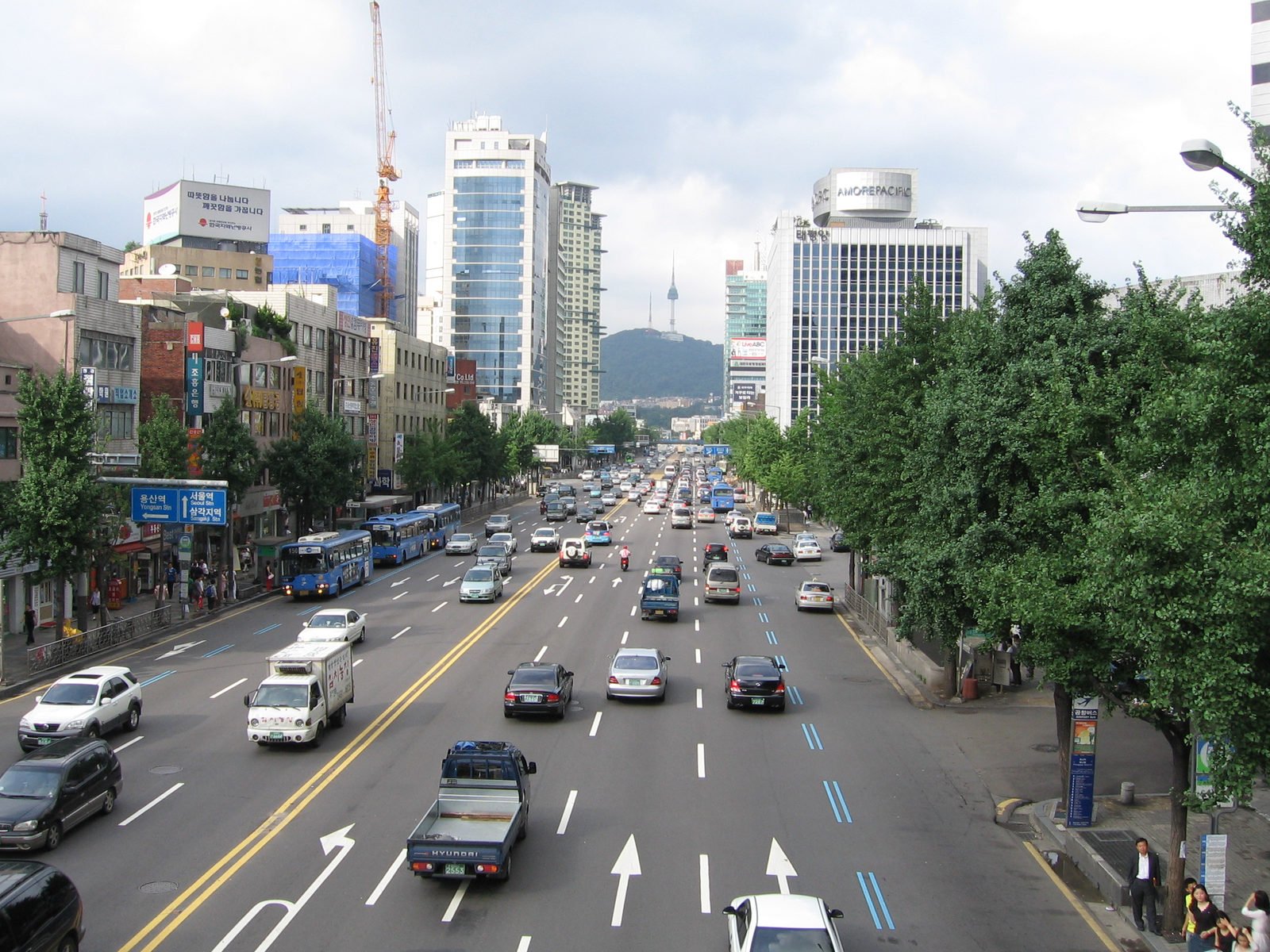
Where was this picture taken? Street details pointed to Seoul, 107 m from the published camera coordinates. Response: 6.6 s.
IGEL · CC BY-SA 3.0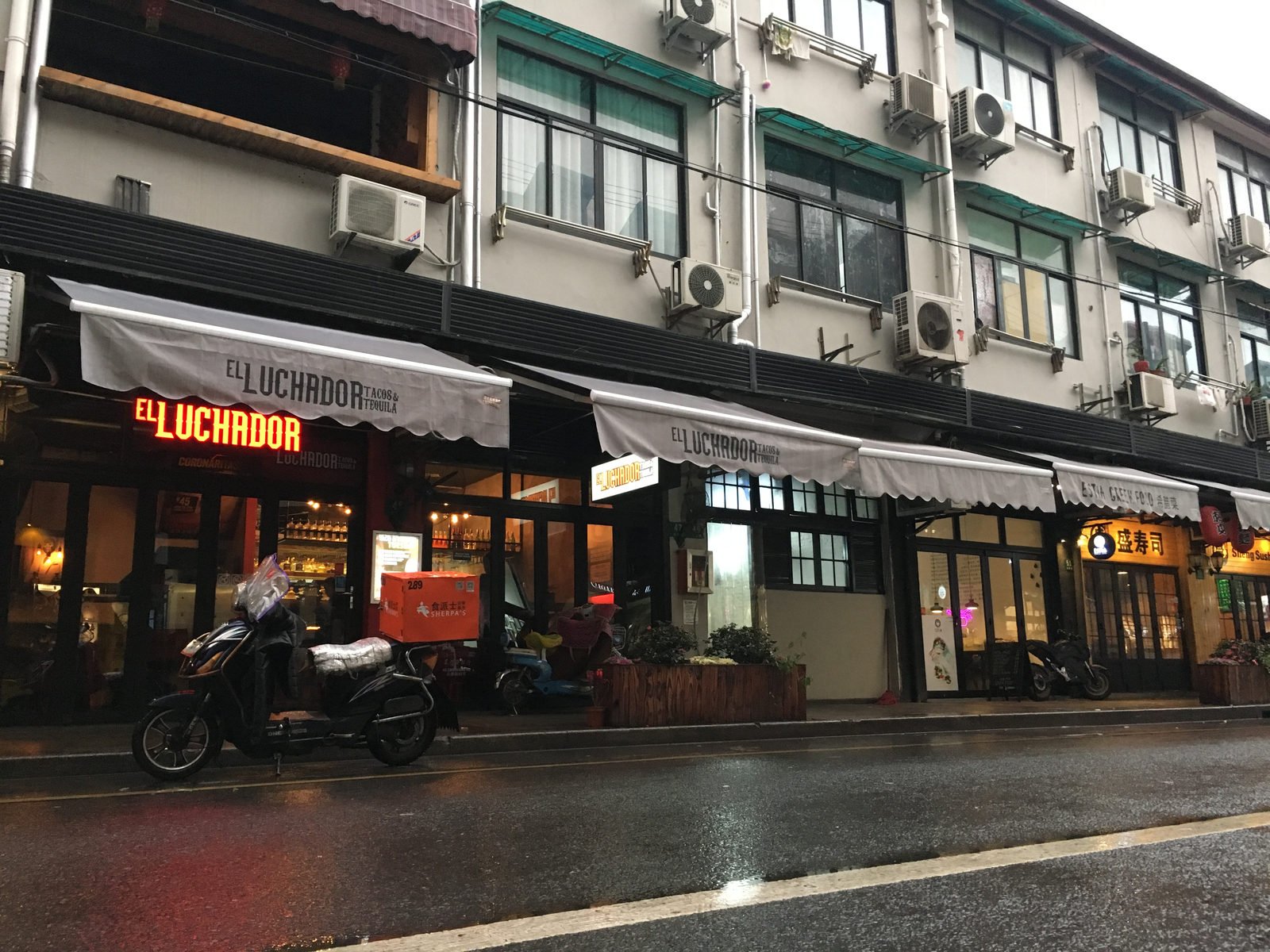
Where is this photo taken? Shopfronts on Yongkang Road gave a Shanghai location, 216 m from the published camera coordinates. Response: 10.3 s.
Szalai.laci · CC BY-SA 4.0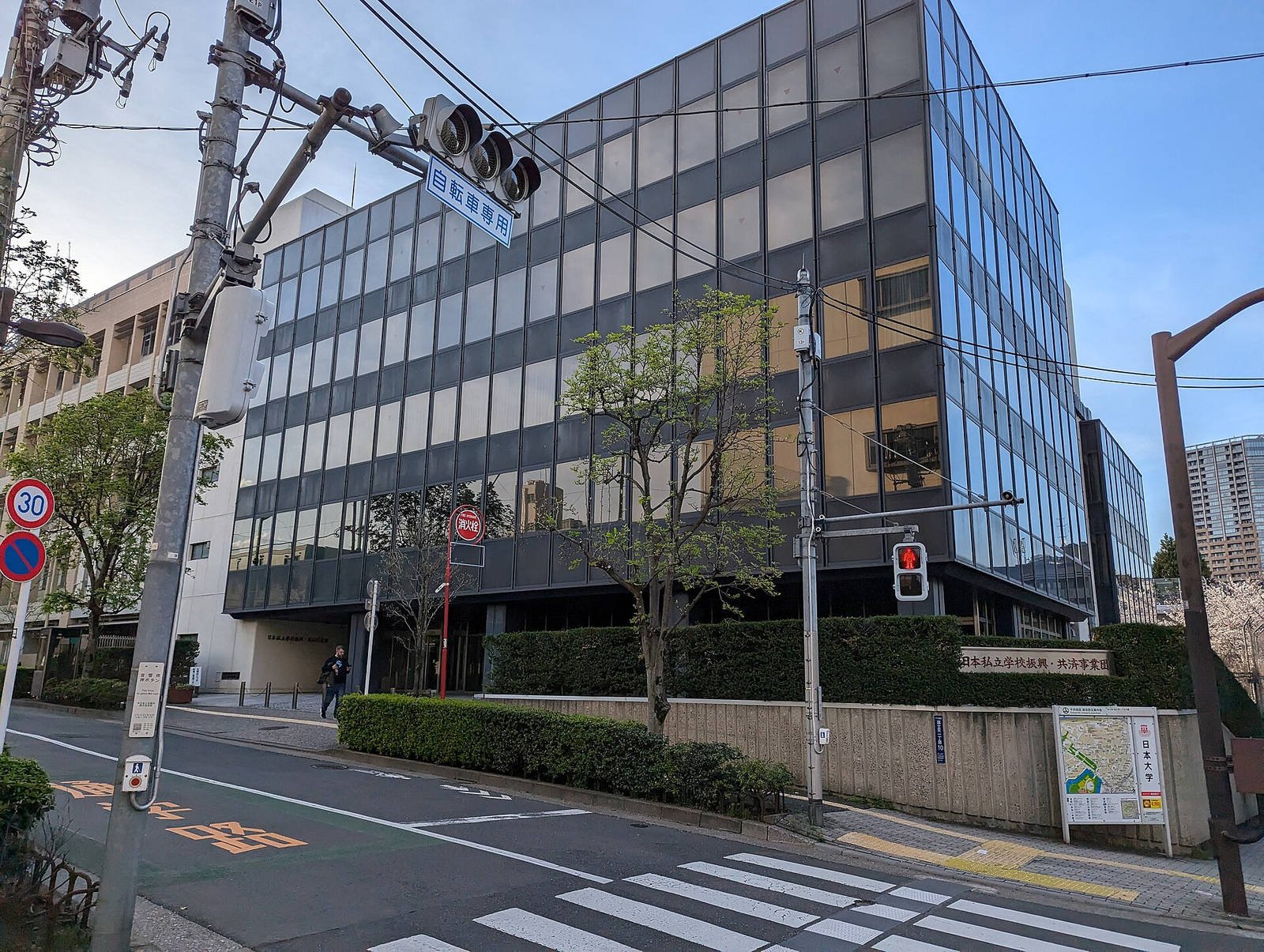
Where is this picture taken? An ordinary Tokyo street produced a point 254 m from the published camera coordinates. Response: 7.7 s.
Syced · CC0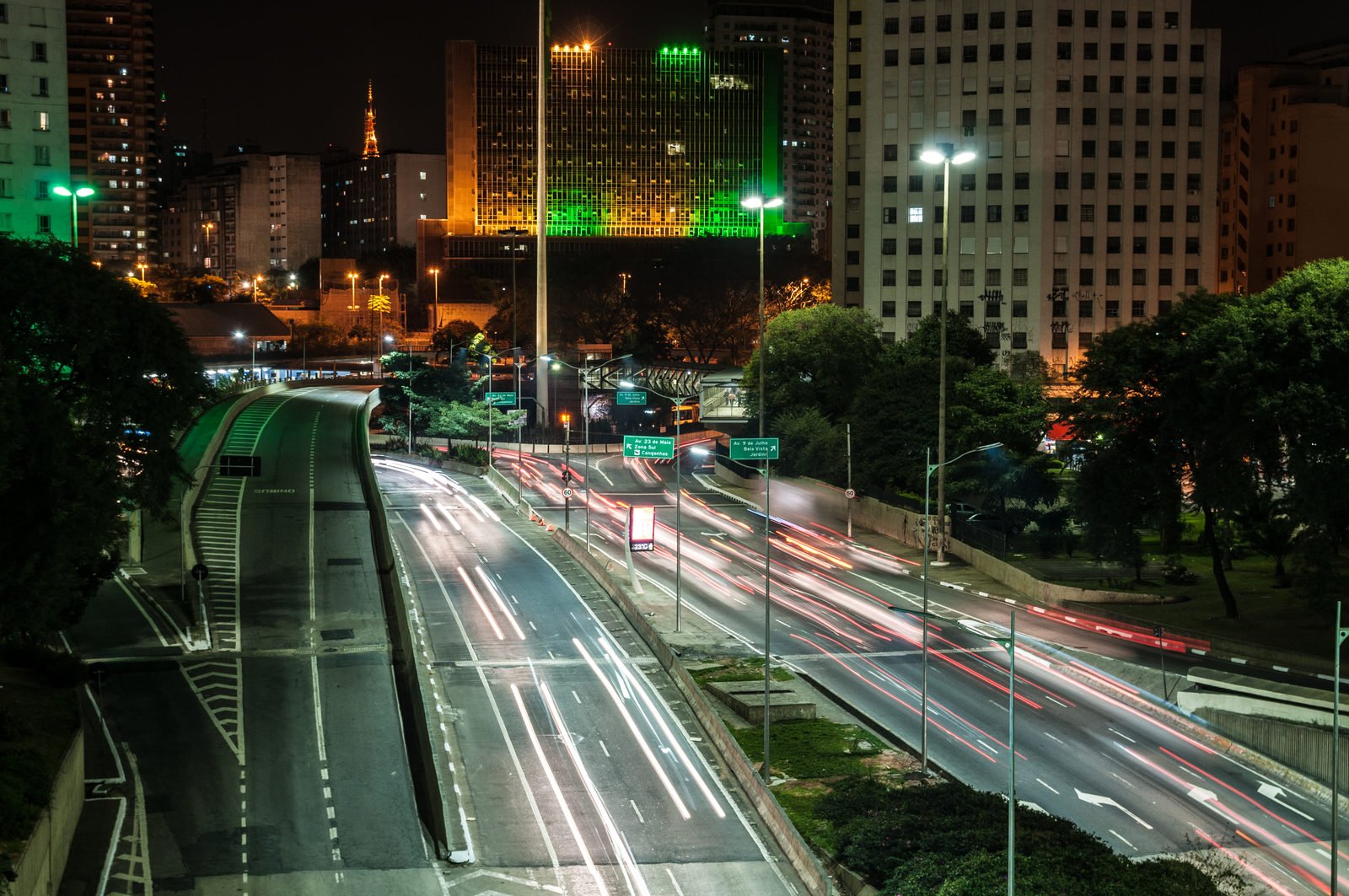
Find photo location clues in a night scene: this São Paulo image returned a first point 228 m from the published camera coordinates in 9.9 s.
Wilfredor · CC0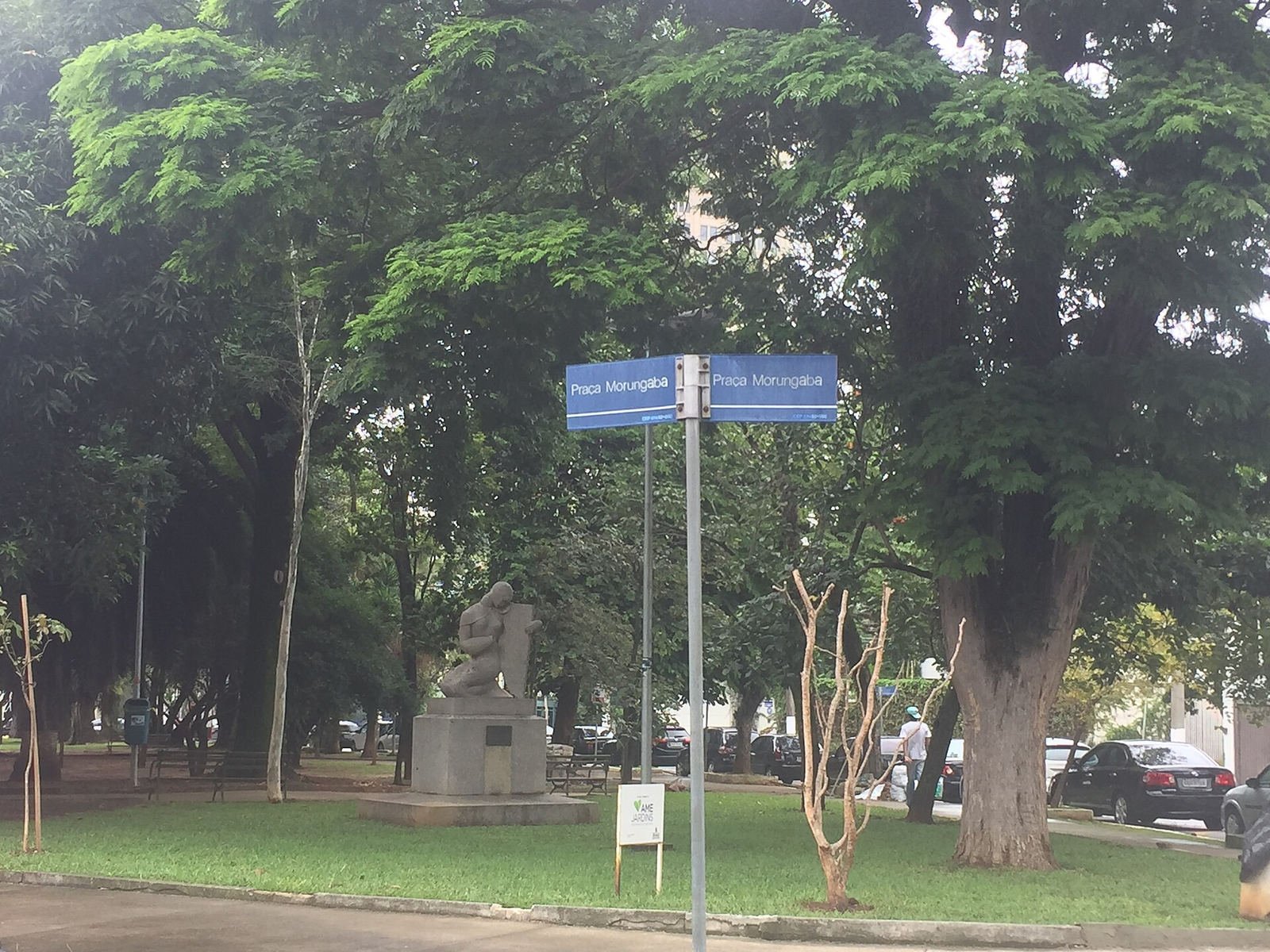
Street signs helped the photo location finder identify a São Paulo setting, with a first point 281 m from the published camera coordinates. Response: 22.1 s.
Bia Muller · CC BY-SA 4.0Examples show recorded results rather than a fresh search. Image quality and visible clues affect the photo location returned for a new upload.
A useful photo location result connects the image to a place and gives you a practical next step. Move from visible clues to coordinates, compare the surrounding area, and decide whether an original source can provide more detail.
The photo location finder works from the scene itself: signs, language, architecture, road markings, landscape, and recognizable landmarks. This makes photo geolocation useful for images whose metadata has been removed. A distinctive scene can point to a specific place; a generic view may support a broader area. The result shows the visual reasoning alongside the candidate.
Coordinates make a photo location easier to investigate than a place name alone. Use the map to inspect the neighborhood, switch between candidate places, and open Google Maps for a closer look. Our photo location finder keeps the image and location result together, so you can compare a building, street corner, or coastline without starting another search.
Image geolocation and source matching answer different questions. AI proposes a photo location from visible clues; source search looks for an image that has already appeared online. When a matching page includes camera coordinates, those coordinates are shown separately. Your account’s History keeps completed searches together, including the map candidates and any source matches you requested.
Find photo location clues, compare possible places, and open a candidate on the map. AI evaluates the photo first; included source checks add context when needed.
Use a clear image with signs, distinctive buildings, road details, or scenery. The photo location finder accepts JPG, PNG, and WEBP files up to 8 MB. Drag a file into the tool, browse your device, or paste an image from your clipboard.
Photo geolocation turns visual clues into up to three candidate places. Read the place names and coordinates, inspect the photo location on the embedded map, and open Google Maps to explore the surrounding streets. The visual explanation helps you compare the result with your image.
After the initial AI estimate, broad or uncertain results automatically trigger an included source check. For a landmark result, you can choose to check image sources yourself. The check looks for matching images and published camera coordinates, shown separately from the AI estimate. The complete search uses one credit, with no additional source-check charge.
You do not need a professionally shot landmark photo to start. A photo location finder can help with travel pictures, shared images, street scenes, and screenshots. The most useful input preserves the surroundings and enough detail to compare the photo location result.
Find photo location details from an old holiday album when the folder name no longer helps. A café sign, station entrance, or mountain outline can connect a photo location to a city or landmark. Open the map result and compare it with the places you remember.
A picture location finder can help identify a destination in a shared travel image or public post. Look for the place shown in the picture, then use its coordinates to explore the area. For a public image, an original-source search may also reveal a useful caption or page.
Screenshots often lose GPS metadata, but the scene can still contain useful photo location clues. Keep street signs, shopfronts, road markings, and surrounding buildings in the frame. Use the photo location finder to explore candidates, then compare the map with those visible details.
Photo geolocation can provide a starting point for an older picture, even when no EXIF data remains. Buildings and roads may have changed, so a photo location needs to be compared with the date and surrounding context. A wider view or another image of the same place can help.
Already have coordinates from a photo location result? Check a latitude and longitude pair, preview the point, and open it in Google Maps. If you only have the image, start with the photo location finder above and use the map link in its result.
Explore photo map coordinatesA photo location may already be stored in the original file. Our free JPEG GPS reader checks EXIF coordinates in your browser without uploading the image or requiring an account. If the file has no GPS tags, return to AI photo geolocation and work from the visible scene.
Check JPEG GPS for freeHow to find photo location clues, use maps, check image sources, and choose the right search for your picture.
Upload your photo and let WhereIsPhoto turn visual clues into a location on the map. It analyzes landmarks, signs, buildings, and scenery to identify possible places—all directly on the homepage.
Yes. WhereIsPhoto analyzes what is visible in the image, so location metadata is not required. You can search travel photos, online images, and screenshots—even when the original GPS tags are missing.
Recognizable landmarks and detailed street scenes can lead to a specific place or nearby street. Location results include coordinates and a map, helping you explore the area and compare the surroundings with your photo. Clear visual details help improve precision.
The AI estimate appears first. Broad or empty results then trigger an included source check automatically. For a landmark estimate, you can choose to check sources yourself. Timing varies with the image and the services involved.
Upload JPG, PNG, or WEBP images up to 8 MB, including screenshots. Street scenes, landmarks, buildings, and outdoor photos with clear visual details give the AI useful clues for finding the location.
An included source check looks for matching images and the pages where they appear. It starts automatically after a broad or empty result; after a landmark result, you can request it yourself. When a matching source publishes camera coordinates, they appear separately on the map. A matching source is not guaranteed.
One photo-location search uses 1 credit. It includes the initial AI estimate and any source check selected automatically by the system or requested for that result. There is no additional source-check charge.
Yes. Your searches are saved in your account’s History. Reopen a result to view the photo, location candidates, map, and completed source searches—without running the same search again.
Start with the original file when possible: it may contain GPS metadata that you can read with our free JPEG tool. If those tags are missing, use the photo location finder to analyze the scene. Keep signs, landmarks, and surroundings visible, then compare the returned photo location with the map. No single method identifies every image.
Yes. A photo location can come from embedded GPS coordinates, a recognizable landmark, visual clues, or a matching original source. The photo location finder brings the visual search and map together; the separate metadata reader checks the original JPEG. Clear scenes often support a more specific place than an image with few distinctive details.
ChatGPT can analyze an image and suggest clues from landmarks or visible text, but it can also misidentify a place. A dedicated photo location finder focuses the task on location candidates, coordinates, maps, and optional source matches. Use those outputs to compare the photo location with the scene rather than relying on a place name alone.
Google Lens can return similar images and related pages that help identify a place. Google Maps lets you inspect a photo location once you have a place name or coordinates. Here, you can start with AI photo geolocation, choose an optional original-source search, and open a candidate in Google Maps to compare streets and surroundings.
Find photo location clues in the image you already have. Upload a picture, explore its map candidates, and decide whether to check the original source. Your next place starts with a photo.